
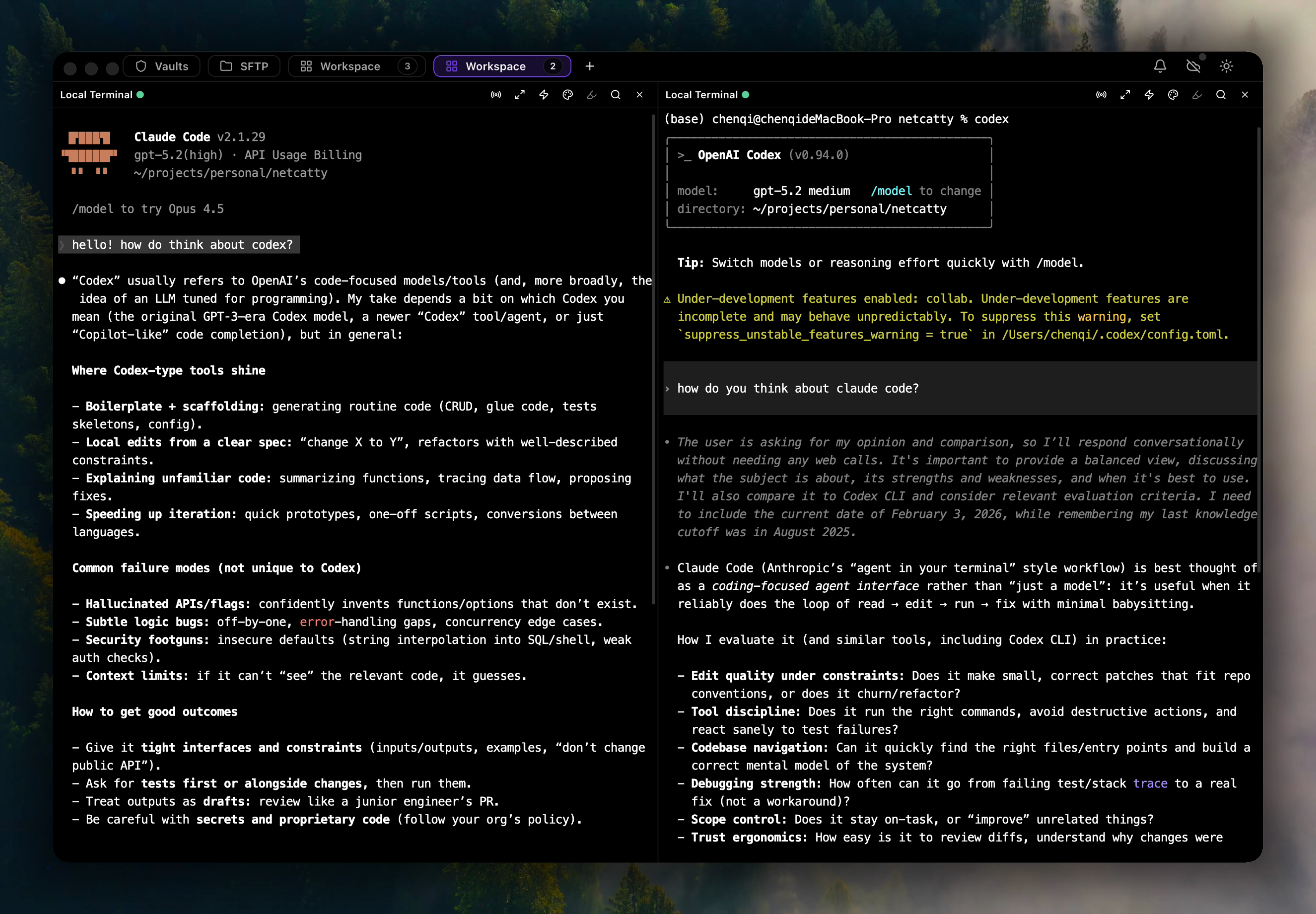
Netcatty’s workspace system lets you organize multiple terminal sessions with split panes, tabs, and persistent layouts that restore automatically between sessions.Documentation Index
Fetch the complete documentation index at: https://mintlify.com/binaricat/Netcatty/llms.txt
Use this file to discover all available pages before exploring further.
Understanding Workspaces
A workspace is a collection of terminal sessions organized in a specific layout:- Panes: Individual terminal sessions that can be split horizontally or vertically
- Tabs: Multiple workspaces within the main window
- Layouts: Split configurations that define pane positions and sizes
- Sessions: Active SSH/terminal connections within panes
Creating Workspaces
New Workspace Tab
Create a new workspace:- Click the + button in the tab bar
- Or press
⌘+T(macOS) /Ctrl+T(Windows/Linux)
Quick Connect
Connect to a host in a new workspace:- Double-click a host in the vault
- Or right-click → Connect
- The connection opens in the current workspace or creates a new tab
From Snippets
Create workspaces from saved snippet configurations:- Right-click a snippet with workspace definition
- Select Open Workspace
- Netcatty creates the layout and connects to specified hosts
Split Panes
Split terminal sessions for side-by-side multitasking:- Horizontal Split
- Vertical Split
- Nested Splits
Split the current pane horizontally (top/bottom):
- Right-click terminal → Split Horizontal
- Or press
⌘+D(macOS) /Ctrl+Shift+D(Windows/Linux)
Resizing Panes
Adjust pane sizes:- Hover over the divider between panes
- Cursor changes to resize handle
- Click and drag to resize
- Release to apply new size
Focus and Navigation
Focus Panes
Switch focus between panes:| Action | macOS | Windows/Linux |
|---|---|---|
| Next pane | ⌘+] | Ctrl+] |
| Previous pane | ⌘+[ | Ctrl+[ |
| Pane 1 | ⌘+1 | Ctrl+1 |
| Pane 2 | ⌘+2 | Ctrl+2 |
| Pane 3-9 | ⌘+3...9 | Ctrl+3...9 |
Navigate Tabs
Switch between workspace tabs:| Action | macOS | Windows/Linux |
|---|---|---|
| Next tab | ⌘+Shift+] | Ctrl+Tab |
| Previous tab | ⌘+Shift+[ | Ctrl+Shift+Tab |
| Tab 1-9 | ⌘+Alt+1...9 | Ctrl+Alt+1...9 |
| Close tab | ⌘+W | Ctrl+W |
View Modes
Netcatty supports two view modes for workspaces:- Split View
- Focus View
Default mode showing all panes simultaneously:Best for:
- Monitoring multiple systems
- Comparing outputs side-by-side
- Running commands in parallel
Session Management
Active Sessions
Each pane contains an active session with:- Session ID: Unique identifier for the connection
- Host reference: Link to vault host configuration
- Working directory: Current remote directory
- Connection state: Connected, connecting, or disconnected
Close Pane
Close the current pane:- Right-click → Close Pane
- Or press
⌘+Shift+W(macOS) /Ctrl+Shift+W(Windows/Linux)
Closing a pane terminates the SSH session. Use
exit in the terminal to disconnect gracefully before closing.Reconnect
If a session disconnects, reconnect without recreating the pane:- Click the Reconnect button in the disconnected pane
- Or right-click → Reconnect
- Netcatty attempts to reestablish the connection
Workspace Persistence
Netcatty automatically saves workspace state:Auto-Save
Workspaces are saved automatically:- When you close the app
- When you switch workspaces
- Periodically during use
- Pane layout (split configuration)
- Host connections for each pane
- Tab names and order
- View mode (split/focus)
- Working directories
Restore on Launch
When you launch Netcatty:Broadcast Mode
Send input to multiple panes simultaneously:Enable Broadcast
- Click the Broadcast button in the toolbar
- Or press
⌘+B(macOS) /Ctrl+B(Windows/Linux) - The broadcast icon appears in all panes
Use Cases
Package Updates
Run
apt update && apt upgrade on multiple servers at once.Configuration Changes
Edit config files simultaneously across a cluster.
Monitoring
Run
top or htop on all servers to compare resource usage.Log Tailing
Tail logs on multiple nodes:
tail -f /var/log/app.logWorkspace Shortcuts
Complete keyboard shortcut reference:Pane Management
| Action | macOS | Windows/Linux |
|---|---|---|
| New pane (duplicate) | ⌘+N | Ctrl+N |
| Split horizontal | ⌘+D | Ctrl+Shift+D |
| Split vertical | ⌘+Shift+D | Ctrl+Shift+E |
| Close pane | ⌘+Shift+W | Ctrl+Shift+W |
| Focus next | ⌘+] | Ctrl+] |
| Focus previous | ⌘+[ | Ctrl+[ |
| Maximize pane | ⌘+Shift+F | Ctrl+Shift+F |
Tab Management
| Action | macOS | Windows/Linux |
|---|---|---|
| New tab | ⌘+T | Ctrl+T |
| Close tab | ⌘+W | Ctrl+W |
| Next tab | ⌘+Shift+] | Ctrl+Tab |
| Previous tab | ⌘+Shift+[ | Ctrl+Shift+Tab |
| Go to tab 1-9 | ⌘+Alt+1...9 | Ctrl+Alt+1...9 |
Other
| Action | macOS | Windows/Linux |
|---|---|---|
| Toggle broadcast | ⌘+B | Ctrl+B |
| Quick switcher | ⌘+K | Ctrl+K |
| SFTP browser | ⌘+Shift+O | Ctrl+Shift+O |
Best Practices
Organize by Purpose
Organize by Purpose
Group related servers in one workspace:
- Web Cluster: Load balancer + app servers
- Database Setup: Primary + replicas
- Monitoring: Metrics servers + log aggregator
Use Meaningful Tab Names
Use Meaningful Tab Names
Rename workspace tabs for clarity:
- Right-click the tab
- Select Rename Tab
- Enter a descriptive name like “Production Deployment” or “Dev Environment”
Save Layouts as Snippets
Save Layouts as Snippets
Create reusable workspace layouts:
- Set up your ideal layout with splits and connections
- Save as a snippet with workspace configuration
- Launch the layout instantly from the snippets panel
Limit Broadcast Scope
Limit Broadcast Scope
When using broadcast mode:
- Close or separate panes that shouldn’t receive broadcasted input
- Verify all panes show the correct hosts before broadcasting
- Test with a safe command like
pwdfirst
Troubleshooting
Workspace Not Restoring
Workspace Not Restoring
If workspace state doesn’t restore on launch:
- Check Settings → Sessions → Restore sessions on launch is enabled
- Verify local storage is not full or corrupted
- Try manually saving workspace: File → Save Workspace
Split Not Working
Split Not Working
If split commands don’t create new panes:
- Ensure a terminal is focused (not vault or settings)
- Check you have an active session in the current pane
- Try splitting from the context menu instead of keyboard shortcut
Broadcast Affecting Wrong Panes
Broadcast Affecting Wrong Panes
If broadcast sends input to unexpected panes:
- Disable broadcast and re-enable to reset
- Close unintended panes or move them to a separate tab
- Use pane numbers (
⌘+1,⌘+2) to verify focus before broadcasting
Related Topics
Split Terminals Guide
Detailed guide to split pane layouts and navigation
Workspace Sessions
Learn about session persistence and restoration
Keyboard Shortcuts
Complete keyboard shortcut reference
Host Configuration
Configure hosts for optimal workspace usage