
Netcatty includes a powerful SFTP browser for managing files on remote servers. Transfer files with drag-and-drop, edit code with syntax highlighting, and manage permissions—all without leaving the app.Documentation Index
Fetch the complete documentation index at: https://mintlify.com/binaricat/Netcatty/llms.txt
Use this file to discover all available pages before exploring further.
Opening SFTP Browser
From Vault
Open SFTP for a specific host:- Right-click a host in the vault
- Select Open SFTP
- Or double-click with
Altkey held
From Terminal
Open SFTP for the current connection:- Press
⌘+Shift+O(macOS) /Ctrl+Shift+O(Windows/Linux) - Or click the Files icon in the terminal toolbar
Quick Access
Recent SFTP sessions appear in:- File menu → Recent SFTP Sessions
- Quick switcher (
⌘+K/Ctrl+K) → type “sftp”
Interface Layout
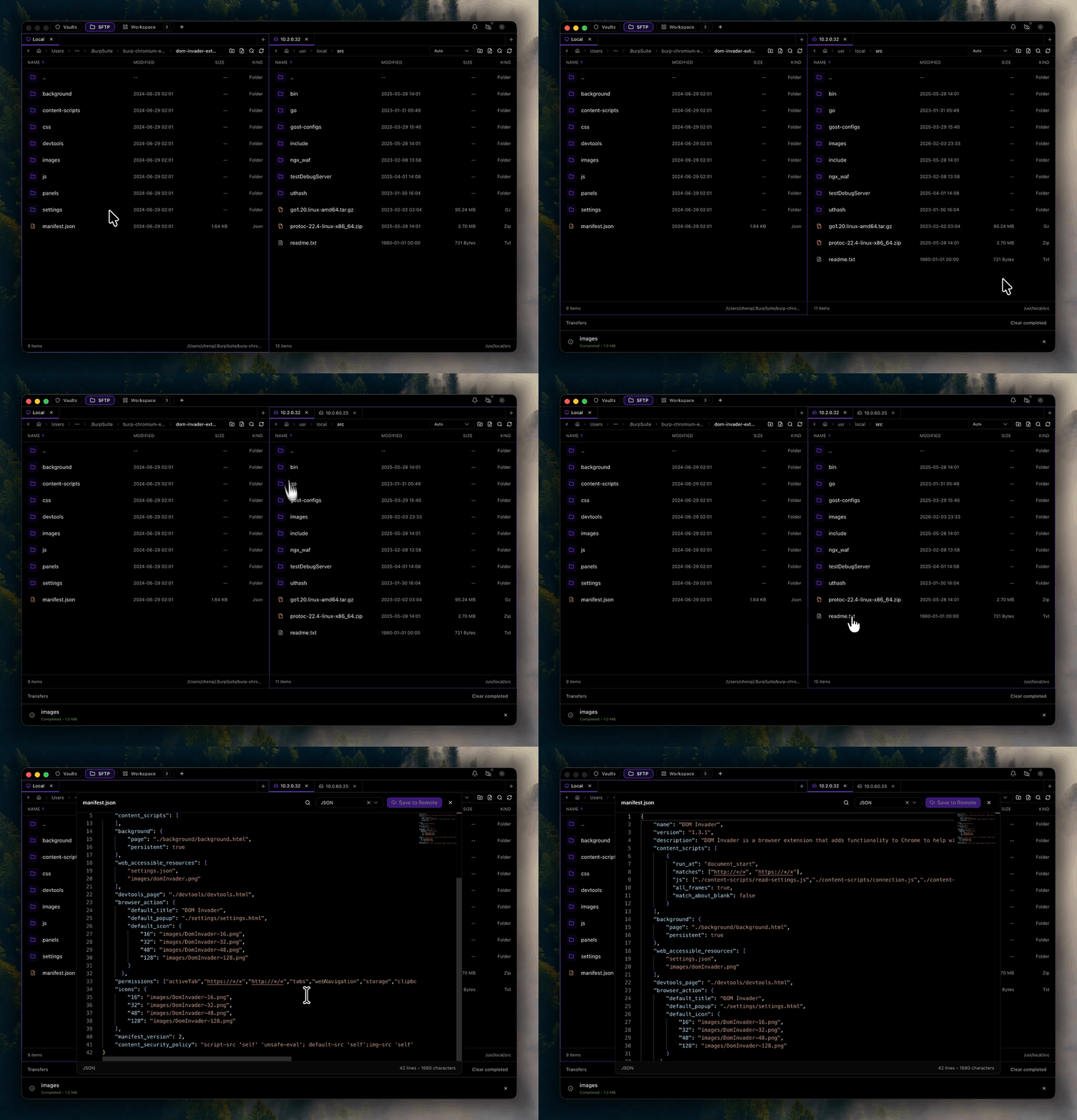
The SFTP browser has three main areas:Local Pane (Left)
Browse your local filesystem:
- Navigate directories
- Select files for upload
- Create local folders
- Preview local files
~/ or %USERPROFILE%)Remote Pane (Right)
Browse the remote server filesystem:
- Navigate directories
- View file permissions and sizes
- Download files
- Create remote folders
File Operations
Upload Files
- Drag and Drop
The easiest method: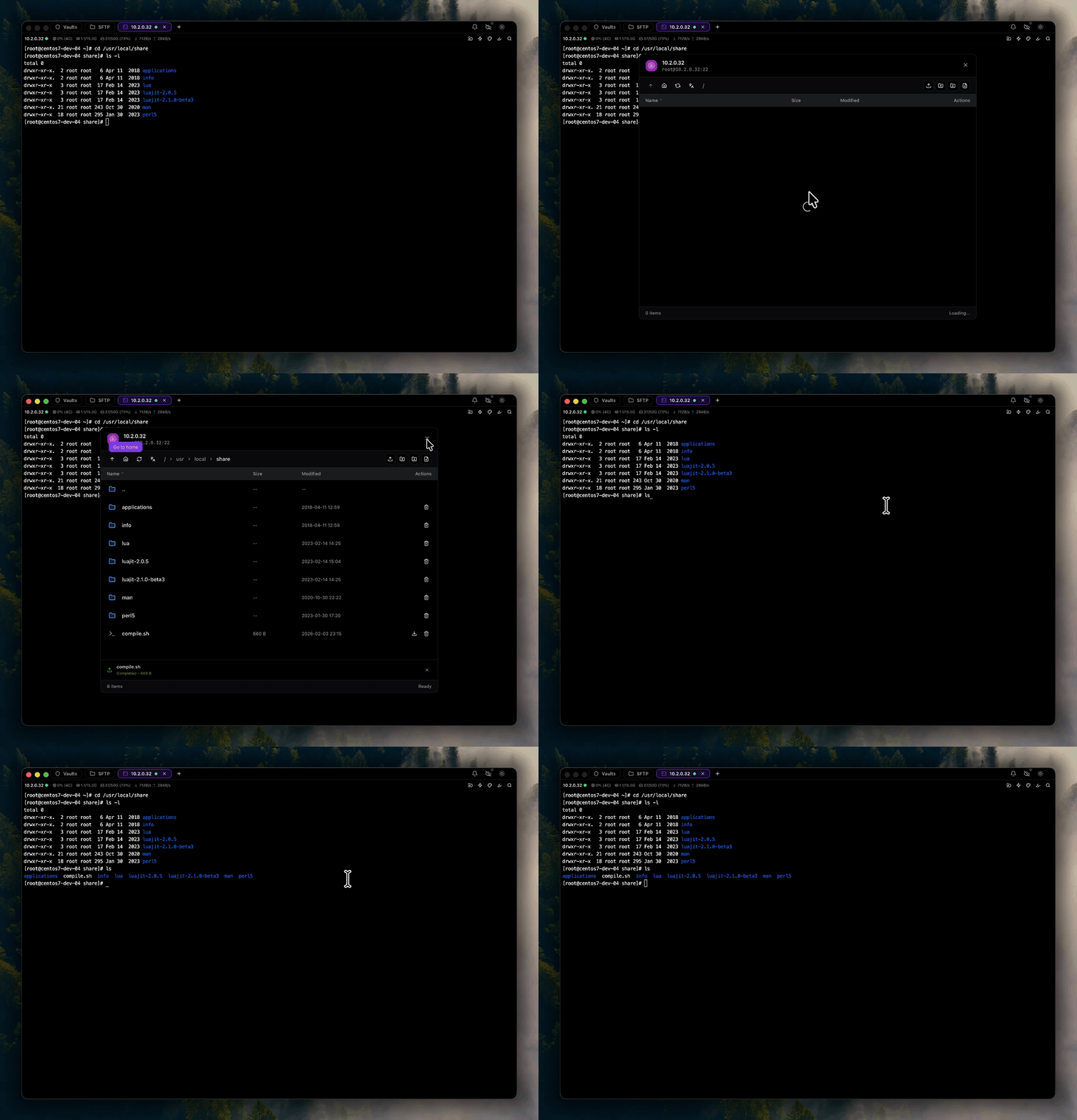
- Select files in the local pane
- Drag them to the remote pane
- Drop in the target directory
Download Files
- Drag and Drop
- Select files in the remote pane
- Drag them to the local pane
- Drop in the target directory
File Management
Other file operations:| Operation | How To |
|---|---|
| Create folder | Right-click in pane → New Folder |
| Rename file/folder | Right-click → Rename → Enter new name |
| Delete file/folder | Right-click → Delete → Confirm |
| Copy path | Right-click → Copy Path |
| Refresh directory | Click refresh icon or press F5 |
Built-in File Editor
Netcatty includes a Monaco editor (the same editor used in VS Code) for editing remote files:Open Files
Open a file in the editor:- Double-click a file in the remote pane
- Or right-click → Edit
- Source code (JavaScript, Python, PHP, Ruby, Go, etc.)
- Config files (JSON, YAML, TOML, INI, XML)
- Web files (HTML, CSS, Markdown)
- Shell scripts (Bash, Zsh)
- Text files
Editor Features
Syntax Highlighting
Automatic language detection with color syntax highlighting for 100+ languages.
IntelliSense
Code completion and suggestions for JavaScript, TypeScript, JSON, and more.
Find & Replace
Search within files with regex support and multi-cursor editing.
Auto-Save
Changes are saved automatically to the remote file when you stop typing.
Keyboard Shortcuts
Editor shortcuts:| Action | macOS | Windows/Linux |
|---|---|---|
| Save file | ⌘+S | Ctrl+S |
| Find | ⌘+F | Ctrl+F |
| Replace | ⌘+H | Ctrl+H |
| Go to line | ⌘+G | Ctrl+G |
| Comment/uncomment | ⌘+/ | Ctrl+/ |
| Format document | Shift+Alt+F | Shift+Alt+F |
| Close editor | ⌘+W | Ctrl+W |
Permissions Management
View Permissions
File permissions are shown in the remote pane:[type][user][group][other]
Example: -rw-r--r--
-: Regular file (ordfor directory,lfor symlink)rw-: User can read and writer--: Group can read onlyr--: Others can read only
Change Permissions (chmod)
Modify file permissions:- Right-click a file or folder
- Select Change Permissions
- Enter octal mode (e.g.,
755,644) or use checkboxes - Click Apply
- Common Modes
- Permission Breakdown
| Mode | Permissions | Use Case |
|---|---|---|
644 | rw-r--r-- | Regular files |
755 | rwxr-xr-x | Executable scripts |
600 | rw------- | Private keys |
700 | rwx------ | Private directories |
777 | rwxrwxrwx | Public (not recommended) |
Change Owner (chown)
Changing file ownership requires sudo permissions. Configure Use sudo for SFTP in the host settings if needed.
- Right-click a file or folder
- Select Change Owner
- Enter new owner:
user:group - Click Apply
Sudo Support
For operations requiring elevated permissions:Enable Sudo
Configure sudo support in host settings:- Edit the host in the vault
- Check Use sudo for SFTP operations
- Save the host configuration
sudo, allowing:
- Writing to system directories (
/etc,/var/www) - Changing ownership of files
- Modifying permissions on restricted files
Password Prompt
If your user requires a password for sudo:- Enter your password in the SFTP browser prompt
- Netcatty caches the password for the session
- Subsequent operations use the cached password
Bookmarks
Quickly access frequently used directories:Add Bookmark
- Navigate to a directory in the remote pane
- Click the Bookmark icon (star) in the toolbar
- Enter a label (e.g., “Web Root”, “Logs”)
- Click Save
Use Bookmarks
Access bookmarked directories:- Click the Bookmarks dropdown
- Select a bookmark
- Remote pane navigates to that directory
File Encoding
Configure filename encoding for servers with non-UTF-8 filenames:utf-8(default)gbk(Chinese)big5(Traditional Chinese)shift_jis(Japanese)euc-kr(Korean)iso-8859-1(Latin-1)
Only change encoding if you see garbled filenames in the SFTP browser. Most modern systems use UTF-8.
Transfer Queue
Monitor Transfers
The transfer queue shows:- Active transfers: Current uploads/downloads with progress bars
- Completed transfers: Recently finished operations
- Failed transfers: Errors with retry option
Transfer Controls
| Action | How To |
|---|---|
| Pause transfer | Click pause icon |
| Resume transfer | Click resume icon |
| Cancel transfer | Click X icon |
| Retry failed | Click retry icon |
| Clear completed | Click Clear button |
Concurrent Transfers
Netcatty supports simultaneous file transfers:- Multiple files in one operation transfer in parallel
- Different SFTP sessions can transfer independently
- Default concurrency: 4 simultaneous transfers
Keyboard Shortcuts
SFTP browser shortcuts:| Action | macOS | Windows/Linux |
|---|---|---|
| Open SFTP | ⌘+Shift+O | Ctrl+Shift+O |
| Refresh | ⌘+R | F5 |
| Go to parent directory | Backspace | Backspace |
| Upload | ⌘+U | Ctrl+U |
| Download | ⌘+D | Ctrl+D |
| New folder | ⌘+Shift+N | Ctrl+Shift+N |
| Rename | F2 | F2 |
| Delete | Delete | Delete |
| Select all | ⌘+A | Ctrl+A |
Troubleshooting
SFTP Connection Failed
SFTP Connection Failed
Cause: SSH connection doesn’t support SFTP subsystem.Solutions:
- Verify SFTP subsystem is enabled on the server:
grep Subsystem /etc/ssh/sshd_config - Should show:
Subsystem sftp /usr/lib/openssh/sftp-server - Restart SSH service after enabling:
sudo systemctl restart sshd
Permission Denied Errors
Permission Denied Errors
Cause: Insufficient permissions to access files/directories.Solutions:
- Check file permissions with
ls -la - Enable Use sudo for SFTP in host settings if you have sudo access
- Verify your user is in the correct group:
groups - Contact server administrator for permission changes
Slow Transfers
Slow Transfers
Cause: Network latency, server load, or large files.Solutions:
- Check network speed:
ping hostname - Try compressing large files before transfer
- Use compression for uploads (see Compressed Uploads)
- Consider rsync for large directory syncs instead of SFTP
Editor Won't Open File
Editor Won't Open File
Cause: File too large or unsupported binary format.Solutions:
- Check file size (editor limit is typically 10MB)
- Verify file is text-based:
file filename - Use
Downloadand edit locally for very large files - Binary files cannot be edited in the Monaco editor
Garbled Filenames
Garbled Filenames
Cause: Character encoding mismatch.Solution: Set
sftpEncoding in host configuration to match the server’s locale (e.g., gbk, big5, shift_jis).Best Practices
Use Bookmarks
Create bookmarks for frequently accessed directories like
/var/www, /etc, /var/log to navigate quickly.Enable Sudo Carefully
Only enable sudo SFTP for trusted servers. Review changes before saving to system directories.
Verify Before Delete
Double-check file paths before deleting. SFTP deletions are immediate and permanent.
Use Editor for Quick Edits
The built-in editor is perfect for config tweaks and small script changes. For major editing, use a local IDE with git.
Related Topics
Host Configuration
Configure sudo SFTP and encoding options
File Transfer Troubleshooting
Solve SFTP connection and transfer issues
Authentication
Set up SSH key authentication for SFTP
Terminal Workspaces
Manage SFTP browser alongside terminal sessions